.svg)

How to Navigate a Pilgrimage Route
01
Jan
,
2026


Tips for how to navigate a pilgrimage route
Taking your first steps on the path can be daunting, especially if you are new to navigation. Here are our top tips to find your way without the worry
In this article:
- Guidance for absolute beginners
- How-to guide using your phone for navigation
Choosing a Pilgrimage Route
If you are a nervous navigator, pick a route that makes it hard to get lost.
Routes that follow rivers source to sea, a coastal path or geographic features like a ridgeline will help give you a general sense of direction for most of the route.
Alternatively, choosing a route that overlaps with a national trail will ensure waymarking is well maintained with plenty of other users to ask in the unlikely event you get stuck.
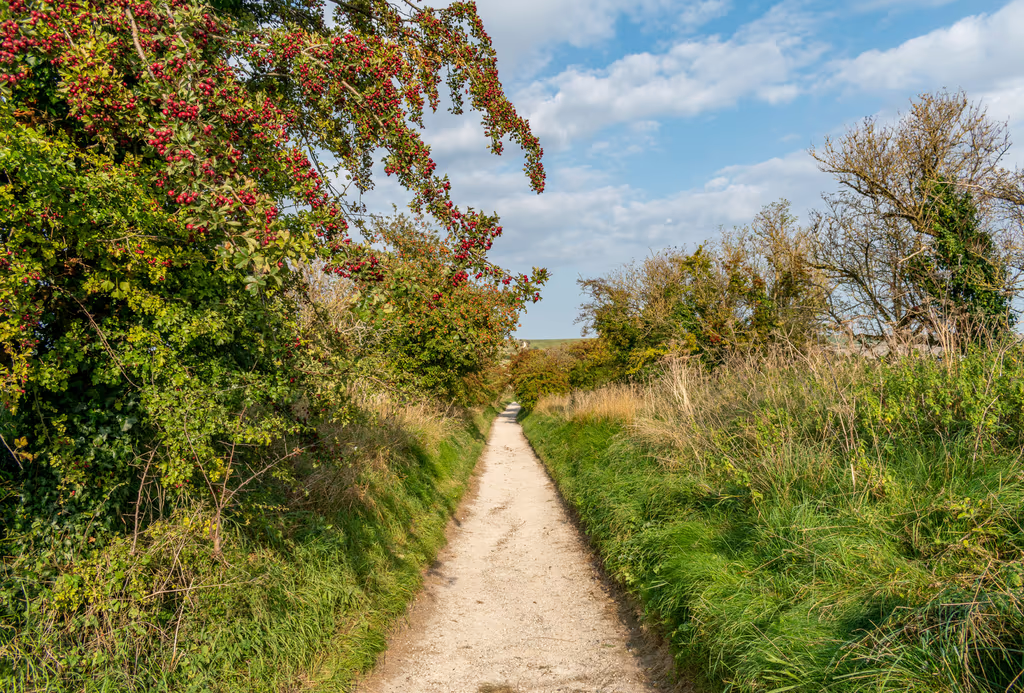
Use your live location to show where you are
Google maps and navigation/mapping apps can show you your live location — exactly where you are.
When you have a cell signal, your phone will use a combination of cell tower signals and satellites to show your live location on a map. This saves the requirement of having to work out where you are, before you work out where you are going! Humans have never been able to do this before!
You can use live location in combination with a back up paper map if you want and it is a great confidence builder if you are new to navigation.
To see your live location, simply launch your preferred mobile mapping app, like Google Maps. Your live location will usually appear as a blue icon.
How to navigate and still remain 'in the moment'
You can leave your phone in "airplane" mode and still navigate but avoid interruptions of messages and texts.
But what if you have no cell signal? This is often the case out in the countryside.
See section at the end of this document for suggestions.
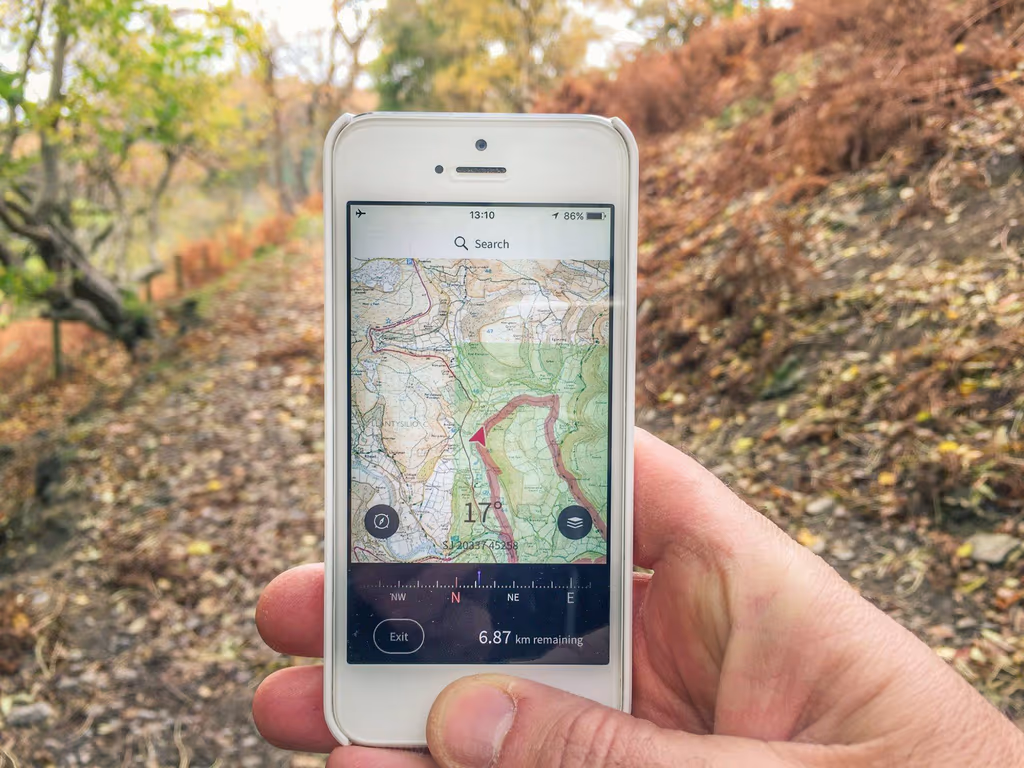
Look Around You
Whether you are using a phone or a traditional paper map for navigation, avoid having your head stuck in your map all the time. In advance of your journey try identifying features along your route and using them as waymarks, such as woods, rivers, church spires, hillsides. Your ability to read the land will grow with practice so you only need to check your map when its time to turn.
You can even take this further and practice Natural Navigation, using all sorts of clues and signs in the landscape to help you follow your path. It's a beautifully rewarding way to walk and you'll notice much more around you.
Get lost!
Give yourself permission to make a wrong turning every now and then. Sometimes you need to try a path to make sure it is the right one, or just because you want to go exploring. Even the most experienced navigator overshoots a turning or gets a little disoriented sometimes. If you have your landmarks in mind, and are checking your map at appropriate intervals, you'll catch your mistake without going too far. It's an excuse to stop for a drink and a snack before carrying on, and you might even make a welcome discovery! Retrace your steps and you'll be back on track in no time at all. It's not a failure, just a course correction.
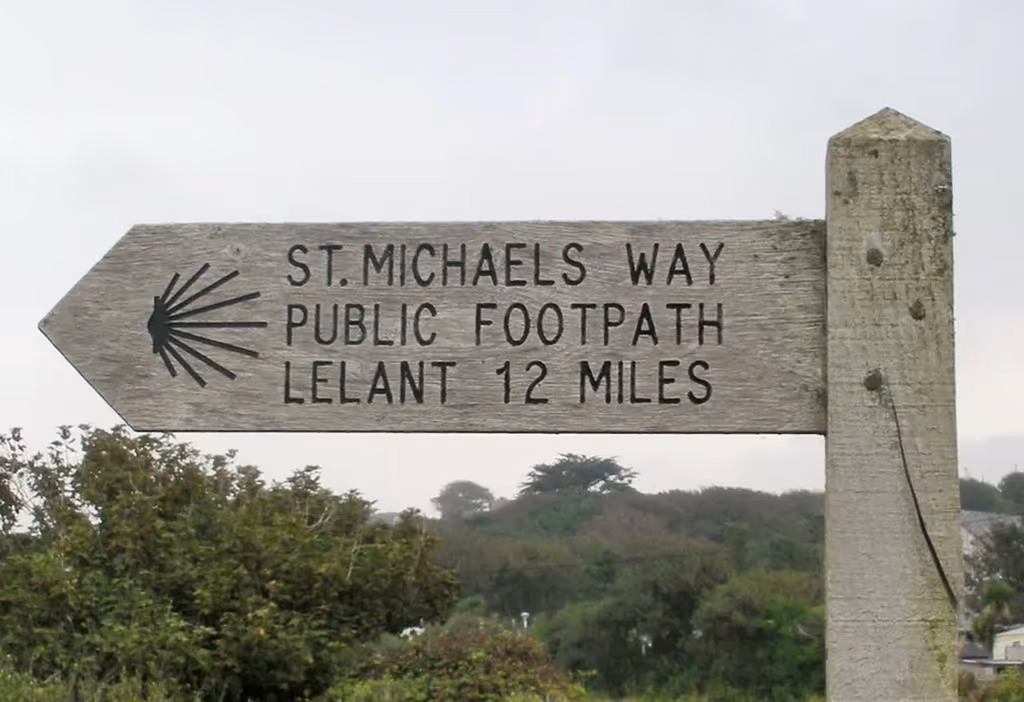
Navigating a pilgrimage path on your phone — some FAQ's
Is it ok to rely on my phone for navigation?
The majority of pilgrimage routes in Britain are safe to navigate using your phone. If you intend to go into a more hazardous landscape, such as a mountain or across a moor (when paths tend to be less visible on the ground), it’s better to have a higher level of navigational skill.
For regular routes, phone navigation has the advantage of quickly and easily showing you where you are, taking some of the worry out of finding your way.
Don't forget battery backups for your phone
It may seem obvious, but be sure to take a backup battery. You can buy these inexpensively online, charge them up and leave them in your backpack with the correct cable. Phone batteries can drain quickly when you are using them for live mapping, so don't get caught out with a dead battery!
What is a GPX file?
A GPX file is a basic type of text file that contains global positioning information, i.e. points along a map joined up by a line. When you open a GPX file in your mapping app the route will appear as a line for you to follow, and you will be able to see where you are along the route without having to work out this out yourself.
All routes on the British Pilgrimage Trust website have GPX files you can download.
The file will be emailed to you as an email attachment. When you receive the file, save to the Files location on your phone or your laptop and then use your preferred mapping app to open the GPX file.
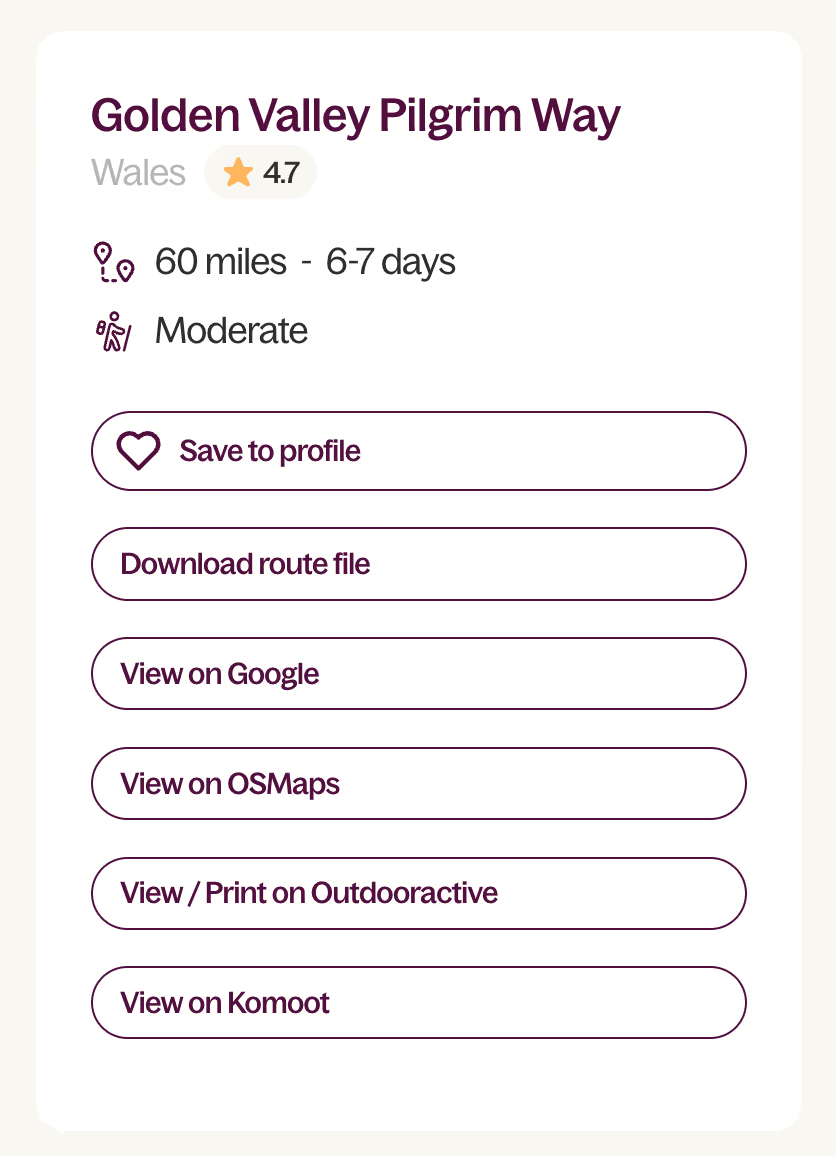
If GPX files seem to be too cumbersome (many people find them to be), then click on the "view on..." links on the right side of the route you've chosen. If we've uploaded the route to a third-party mapping app, you'll see a link there. No need to download a GPX file. Just go to that mapping app, sign up, and click the link.
What if I lose signal on my phone?
Your phone’s GPS works separately to phone signal and data connection, by using satellites rather than cell towers. GPS works so long as it can get a signal from the satellite, and works in airplane mode too. (But it won't work where it cannot get a satellite, like underground or in caves.)
Using GPS only with no cell coverage in airplane mode will not use up your phone's data allowance.
However, to use GPS, you must have downloaded the base map and route offline in advance when you're at home with a good signal or wifi! So this is an important part of preparing for your walk.
Use your preferred mapping app to download the area your are walking so it is stored "offline" on your phone. Do this before you leave home! Google Maps and all mapping apps let you do this. Also download your GPX route file (see below for instructions).
Here are some useful instructions:
How to download areas and navigate offline in Google maps.
How to download maps to your iPhone
How to download routes and maps with OS Maps
How to download routes and maps with Outdoor Active
Choose a Mapping App
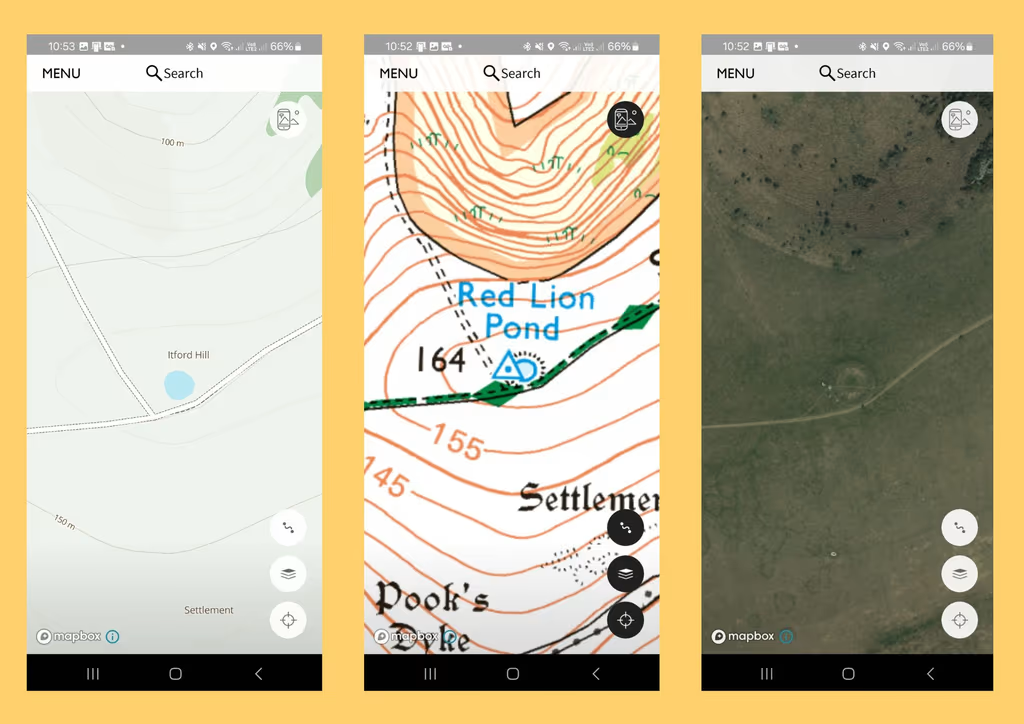
There are lots of different mapping apps available, and the right one for you will depend on the type of maps you like to use. There are some free apps but these have limited functionality or very basic maps. Take the time to look at a couple of options before you choose. Take advantage of the free trial and remember to cancel it if you don’t want to pay. You'll find many routes from our website already loaded onto some of these apps.
Outdoor Active
- Free version available uses Open Street Map (basic, easy to read mapping) and allows you to use GPX files.
- Subscription version offers a choice of different maps, including aerial and Ordnance Survey.
- Free trial for 14 days, then a few pounds per month.
- Additional benefit is that this app allows you to find routes marked specifically as Pilgrim Walks, plus whoever added the route is able to add content like readings, music to enrich your experience.
- Downside - you can see any route anyone has chosen to share, which can make it a bit confusing for beginners to find what you are looking for.
Ordnance Survey
- Free version uses Open Street Map (basic, easy to read mapping)
- Free trial for subscription version which offers a choice of different maps, including satellite and Ordnance Survey maps.
- Free trial for 14 days, then a few pounds per month or a one-off fee for the year
- Likely to be the most up-to-date and accurate map with the familiarity of OS symbols to help you find other services you may need for your journey, or anticipate the type of terrain you will encounter.
- Downside is that you do need to be able to understand things like the map symbols and contour lines to get the most from it.
- Maps show a very comprehensive record of ancient monuments and significant landmarks
Free Apps
These have less functionality and you will not be able to use Ordnance Survey maps on them.
- Guru Maps - free if you download less than 15 routes. If you want to upgrade to the pro version Friends of the British Pilgrimage Trust get a 30% discount.
- OsmAnd - greater variety of functionality than most free map apps but you might need to invest the time to learn to use it. You also need to download regional maps separately.
Other Navigation Apps
There are plenty of other mapping apps available like Alltrails, Komoot and Strava. If you already have one that you like that works for you that’s fine, as long as you can use GPX files with it.
Very important: make sure you allow your app permission to view your location when you open it for the first time
Download the GPX File for your route
A GPX file is a type of text file that contains code to exchange global positioning information with your mapping app. If you open it as a text file it won’t make much sense, but when you open or import it in your mapping app, the route will be shown (as long as there aren't any issues with that specific file). When you download a route from our website, you will be sent an email with all the relevant files ready to use.
You can save the file linked in the email onto your phone and open the file with your mapping app by either:
- Select the file from where you have saved it (or directly from your email if you don't want to save), and then use “open with” function to open in your mapping app.
- Open your mapping app and use the menu to “Import GPX”. The specific process will vary depending on which app you are using.
Instructions for Outdoor Active
Instructions for Ordnance Survey
Try using Google Maps
If you prefer the familiarity of a Google map, the British Pilgrimage Trust offers all routes on its website in this format.
This is can be used on its own in low-risk landscapes or in tandem with your mapping app. It is a quick and easy way to check your position in the landscape using an aerial map, or check what businesses and services may be nearby. To use this, you must download the map 'offline' to your phone before heading out.
Click on the link on the individual route entry from your smartphone to open it up.
This will enable you to use the walking route like normal directions in Google Maps. Depending on your phone you may need to click on the menu within the map and select Open in Maps to view it in Google Maps along with your live location. iPhone users will also need to save it to their phone to stop the route disappearing when you lock your screen.
Further Training
If you are keen to expand your navigational skills with traditional map reading, there are some great resources online.
The Ramblers offer a series of short introductory videos for things like how to take compass bearings, how to measure distance etc.
Ordnance Survey also offers a range of resources to improve paper map reading skills.
Our patron Tristan Gooley offers a beginners guide to natural navigation.

Further reading


.svg)
Comments
0 Comments
Login or register to join the conversation.
Tom Jones
Lorem ipsum dolor sit amet, consectetur adipiscing elit. Suspendisse varius enim in eros elementum tristique. Duis cursus, mi quis viverra ornare, eros dolor interdum nulla, ut commodo diam libero vitae erat. Aenean faucibus nibh et justo cursus id rutrum lorem imperdiet. Nunc ut sem vitae risus tristique posuere.
Tom Jones
Lorem ipsum dolor sit amet, consectetur adipiscing elit. Suspendisse varius enim in eros elementum tristique. Duis cursus, mi quis viverra ornare, eros dolor interdum nulla, ut commodo diam libero vitae erat. Aenean faucibus nibh et justo cursus id rutrum lorem imperdiet. Nunc ut sem vitae risus tristique posuere.